Firebrande documentation
Firebase operations, under control.
Firebrande gives teams a safer, clearer workspace for managing Firebase projects, data, storage, functions, and operational changes.

Getting started
Getting a team from zero to a working Firebase project inside Firebrande is four steps: create an account, start a plan, connect Google and a Firebase project, then open a workspace tool. Each step below shows the actual screen you'll see, in order.
Before you start
- A Google account that already has Owner, Editor, or a role with Firebase access on the project(s) you want to manage. Firebrande only discovers projects that account can already see.
- A card for checkout — every plan starts with a 14-day trial, but Stripe requires a payment method up front to start it.
- A modern browser (Chrome, Edge, Firefox, or Safari). No local install, CLI, or service-account key is required to get started.
- If you're inviting teammates later, decide who should hold the owner role — it's the only role that can transfer ownership or move projects between teams.
Create your account
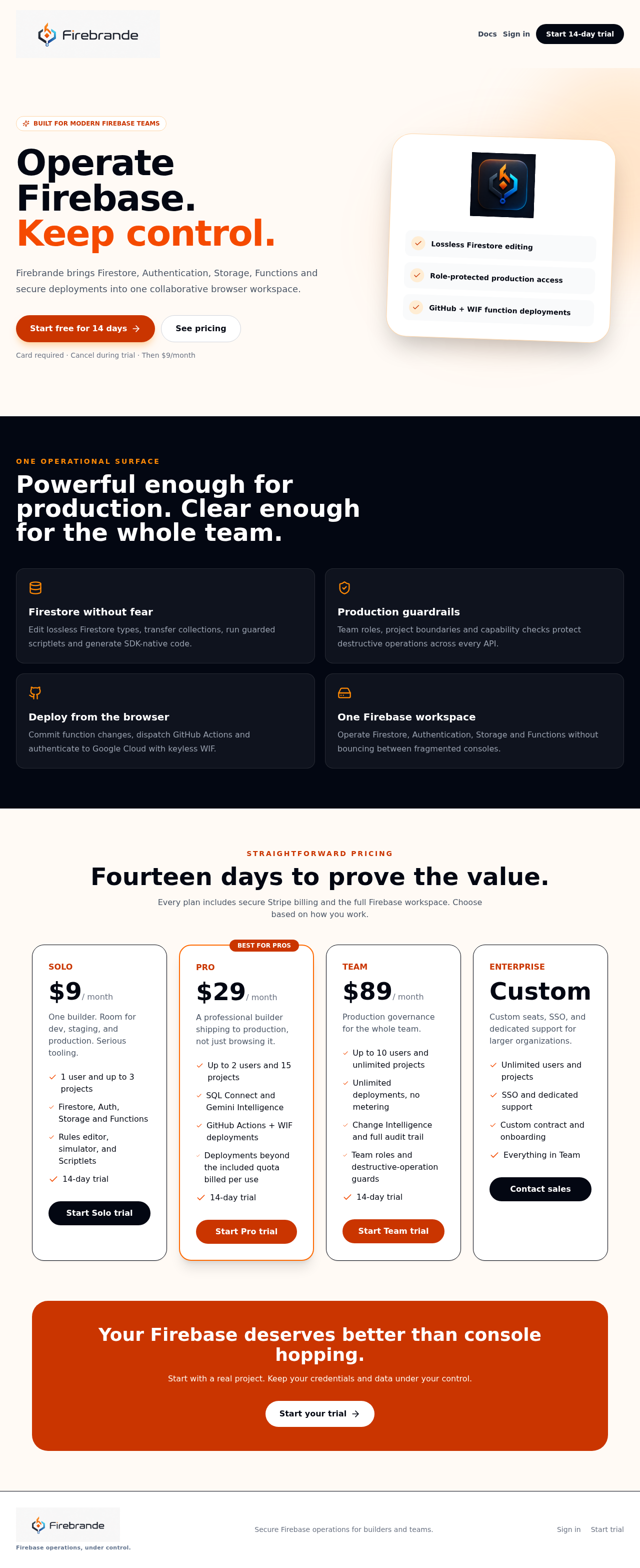
From the homepage, select Start 14-day trial (new account) or Sign in (existing account). Sign-in is handled by Clerk and supports Google sign-in as well as email and password. Creating an account automatically creates a personal team with you as its owner — there's no separate "create a team" step.
Start a plan
A brand-new team has no active subscription, so Firebrande routes you straight to Plans & billing after your first sign-in. Pick Solo, Pro, or Team and start the trial; every other workspace stays gated behind this step until the team has a trialing or active subscription.
Connect Google and a Firebase project
Open Team in the sidebar and authorize the Google account that owns your Firebase project. Firebrande lists every Firebase project that account can see and hasn't already connected — pick one and select Connect.
Open a workspace
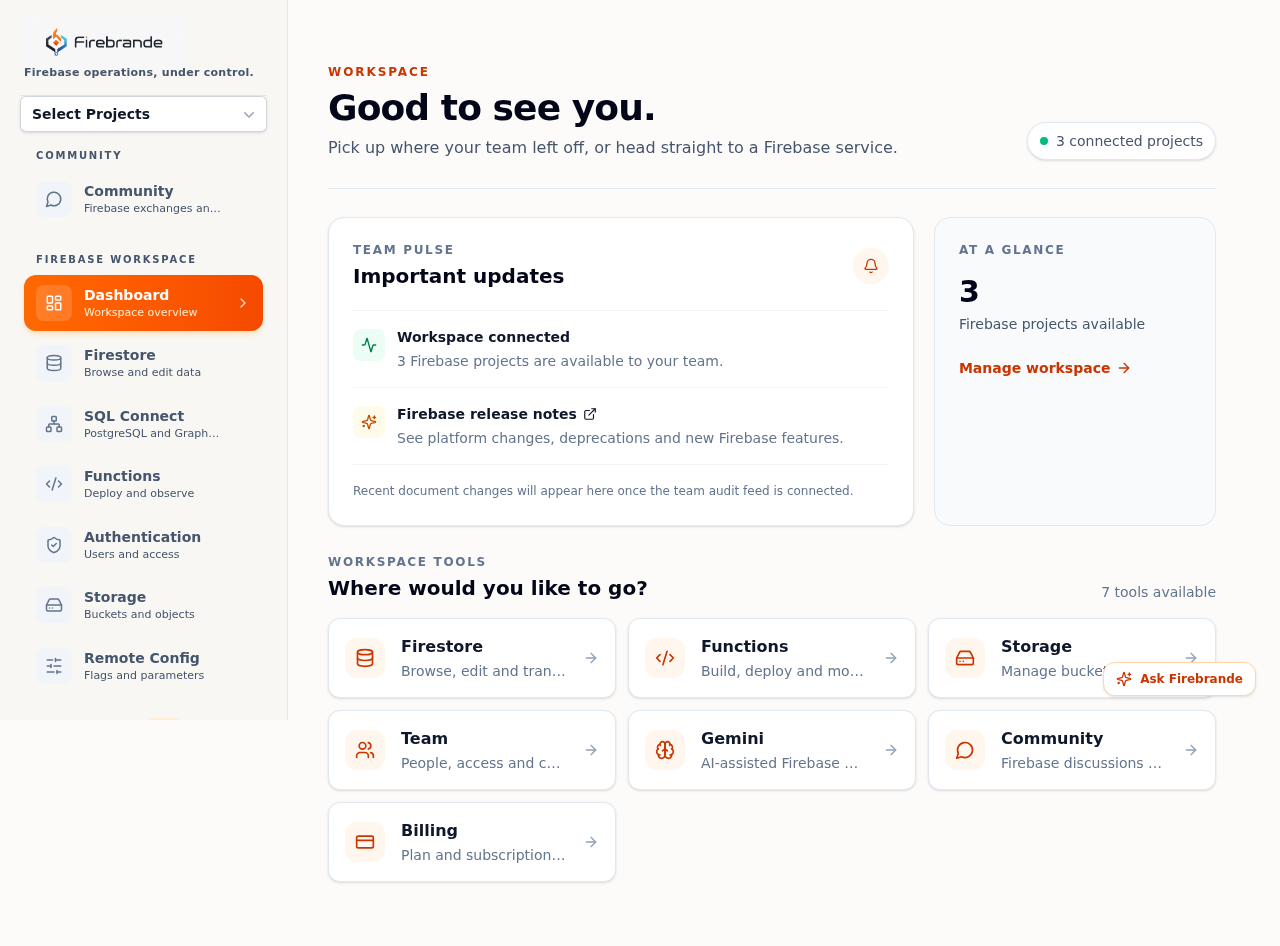
Back on the workspace home, the sidebar now lists Firestore, Authentication, Storage, Functions, SQL Connect, and Intelligence for the connected project. Pick one to start browsing data, reviewing users, or shipping a change.
Step 1 — Create your account
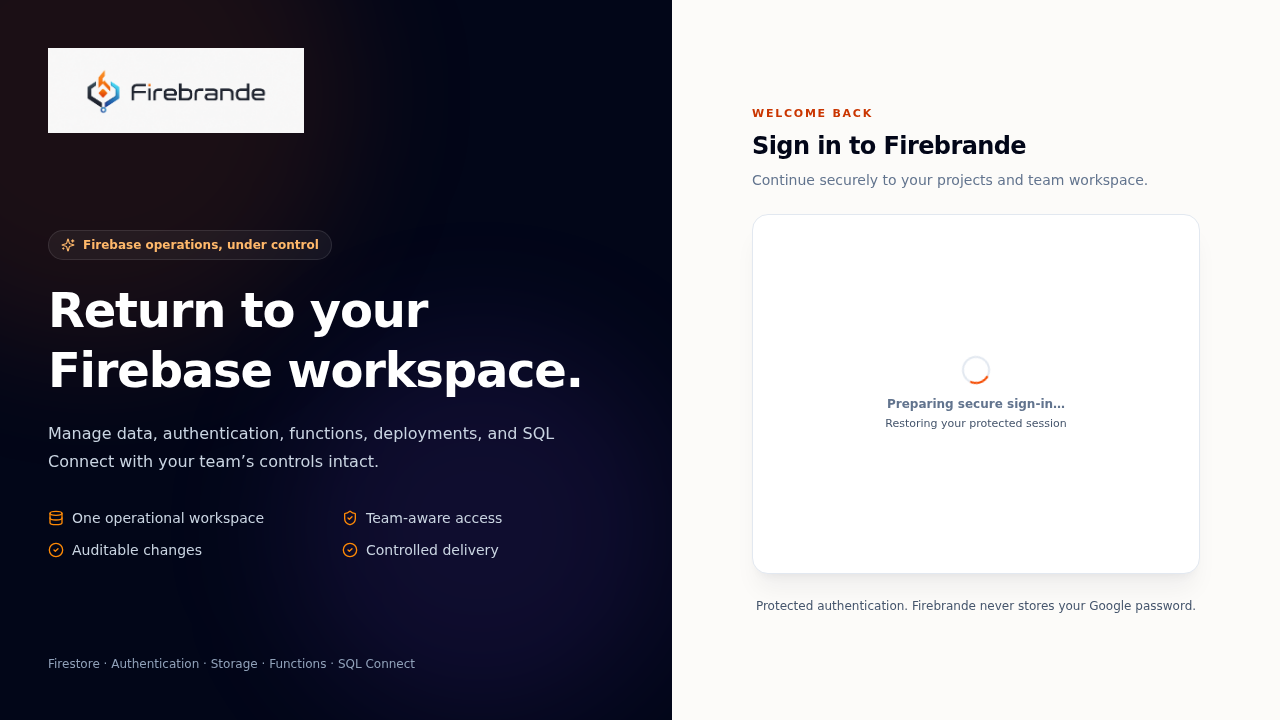
The signed-out homepage is where every new user lands. Start 14-day trial opens sign-up; Sign in is for a returning account. Both use the same Clerk-hosted authentication card shown below, which supports Google sign-in alongside email and password — Firebrande itself never sees or stores your Google password.
Step 2 — Start a plan
Signing up creates your personal team automatically, but that team starts with no
subscription. Firebrande's server-side gate sends any signed-in user without an active
or trialing subscription to Plans & billing before it will open any
other workspace — the only two routes it lets through unpaid are /billing itself and /teams, so you can always reach billing or check team membership.
Choose Solo, Pro, or Team and start the
trial from the plan card; Stripe hosts the actual checkout.
See Billing and entitlements for the full plan comparison and screenshot.
Step 3 — Connect Google and a Firebase project
With an active plan, open Team from the sidebar. The first time through, authorize Google access when prompted — Firebrande needs this to discover which Firebase projects your account can see. Once connected, every discoverable, not-yet-claimed project appears in the Connect Firebase projects panel; select one and choose Connect to bring it into the team.
See Connect a project for the full panel walkthrough, environment tagging, and the screenshot.
Step 4 — Open a workspace
Back on the workspace home (select the Firebrande logo, or Dashboard in the sidebar), the connected-project count in the header confirms the project is live, and the Workspace tools grid becomes the jumping-off point for Firestore, Functions, Storage, Team, Gemini, Community, and Billing. The left sidebar mirrors the same tools for every page you visit afterward.
This documentation is the starting point for the public product guide. The repository also contains a deeper operations guide for teams running production-sensitive workflows.
Connect a project
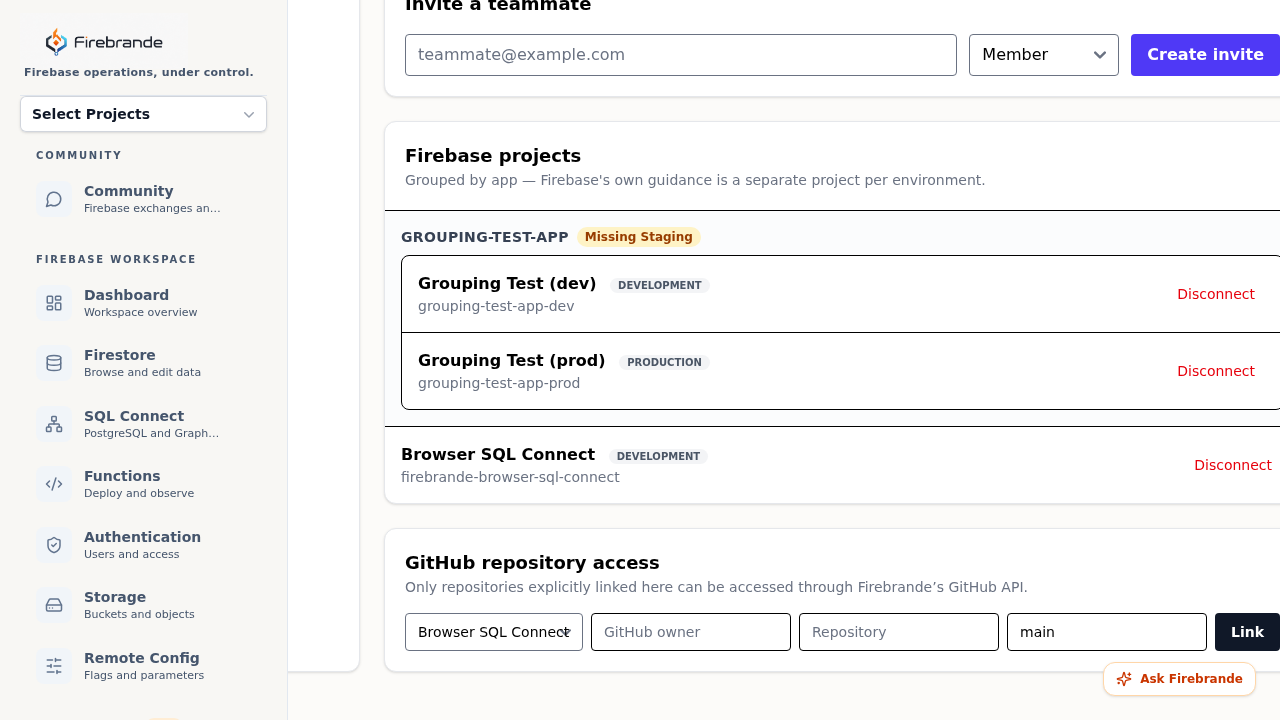
Project connections live on the Teams page, scoped to whichever team you have
selected in the sidebar. Owners and admins see a Connect Firebase projects panel
listing every Firebase project Google discovers for the signed-in account that this team hasn't
claimed yet. Pick one and select Connect to bring it into the workspace; a capacity
badge in the panel header (for example 1 projects · team) tracks usage against the
plan limit, and the connect button disables itself once the team is at capacity.
If Google access has expired, the panel shows Reconnect Google to discover Firebase projects instead of a list — sign in again from the account menu to refresh discovery. If nothing is missing but a project still won't show up, confirm the signed-in Google account can see that project in the Firebase console itself; Firebrande can only discover projects the connected account already has access to.
Connect
Choose a Google-discovered project from the list and confirm. It joins the team immediately and counts against plan capacity.
Set environment
Mark each connected project Development, Staging, or Production, give it a color tag, and optionally lock it read-only from the Environment safety panel.
Disconnect
Remove a project from the Firebase projects list when a team no longer manages it. This revokes Firebrande access only — it never deletes Firebase data.
Connect development and production projects as distinct projects. Check the active project before every write, migration, deployment, or policy change.
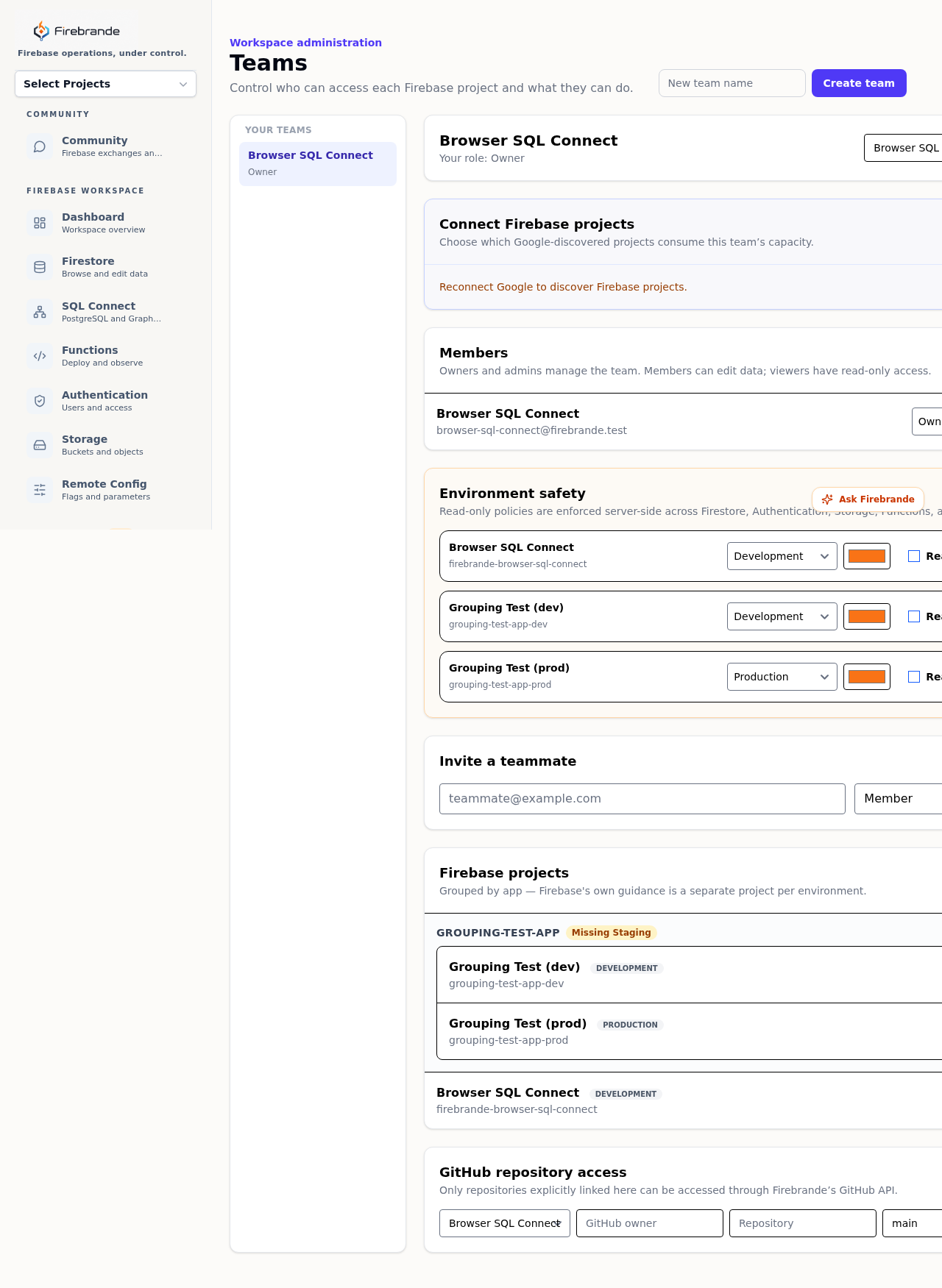
Connecting a project whose ID follows the common -dev/-staging/-prod naming pattern does two things automatically: it tags the project's environment to match, and it
groups it with any other connected project that shares the same base name — so acme-app-dev and acme-app-prod land together under acme-app in the Firebase projects list below, instead of two unrelated rows. A group missing
an environment shows a direct nudge (for example Missing Staging) rather than staying
silent about it — the same one-project-per-environment setup Firebase's own documentation recommends,
made visible instead of left to remember.
What Firebrande manages
Six Firebase and Google Cloud surfaces, one workspace. Every card below links to the full walkthrough, screenshots included.
Firestore
Inspect collections and documents, edit fields, build queries, manage indexes, and run export, import, and migration jobs.
Storage
Browse buckets and objects, update metadata, review access and lifecycle settings, and use protected upload and transfer operations.
Functions
Inspect deployments, logs, incidents, secrets, alerts, and operational metrics, with GitHub-backed deployment setup.
Authentication
Look up users, create or update accounts, manage verification and password-reset actions, and review bulk operations.
SQL Connect
Inspect services and schemas, run governed queries, compare source, generate SDK artifacts, and use approval-gated delivery.
Intelligence
Ask project-grounded questions across deployments, data, Storage, Authentication, and SQL Connect while keeping proposals reviewable.
Common workflows
Review Firestore data
Select a project, open Firestore, choose a collection, and inspect documents. Use the query builder for filtered reads; preview bulk changes before applying them.
Move or transform data
Start from the Firestore jobs area, choose an export, import, transfer, or migration operation, and review its status and failures. Use a development project to rehearse the operation first.
Deploy Functions
Connect the project repository, review the deployment setup, confirm the required permissions, and inspect the deployment audit and monitoring views after release.
Ship SQL Connect changes
Inspect the service schema, select a repository, compare source, run verification, and complete the explicit approval step before deploying.
Firestore
Firestore is the data workspace for browsing collections, querying documents, editing nested values, designing starter schemas, writing and auditing scripts, and running durable data jobs. Always confirm the active project and collection path before a write.
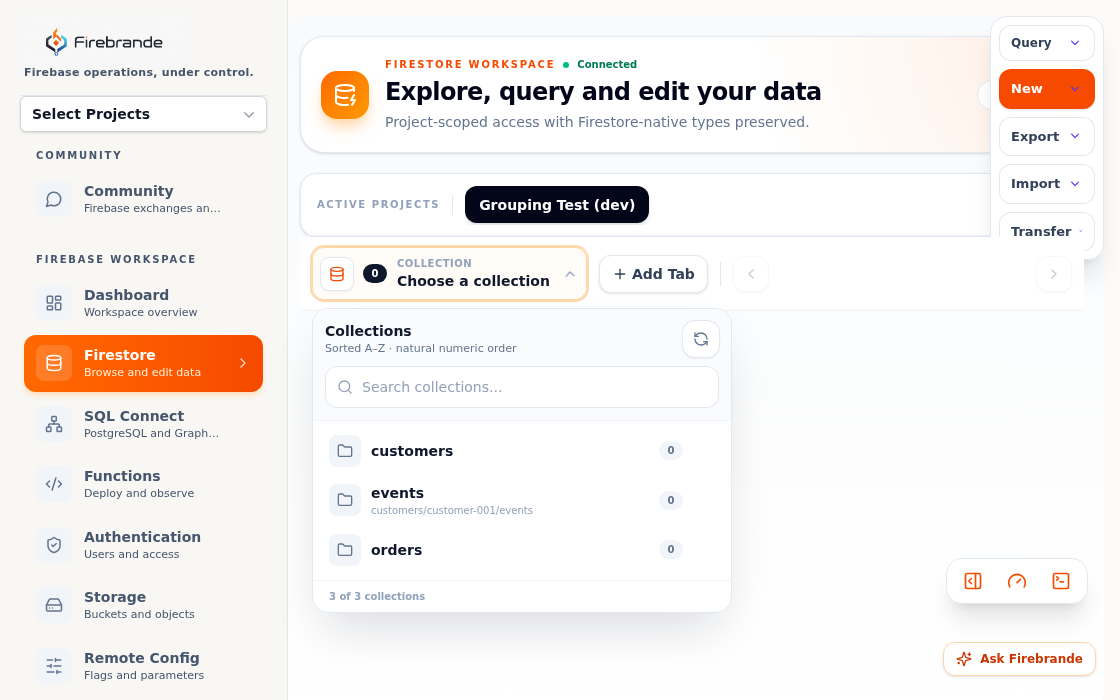
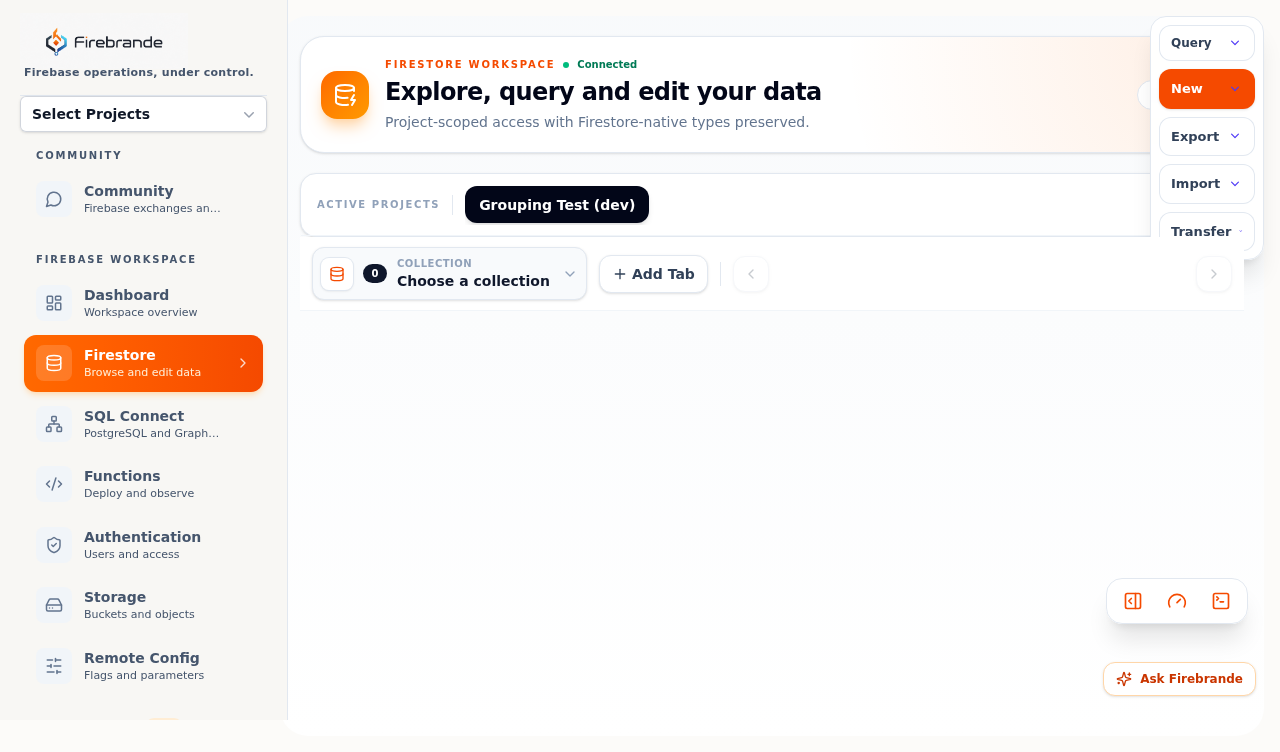
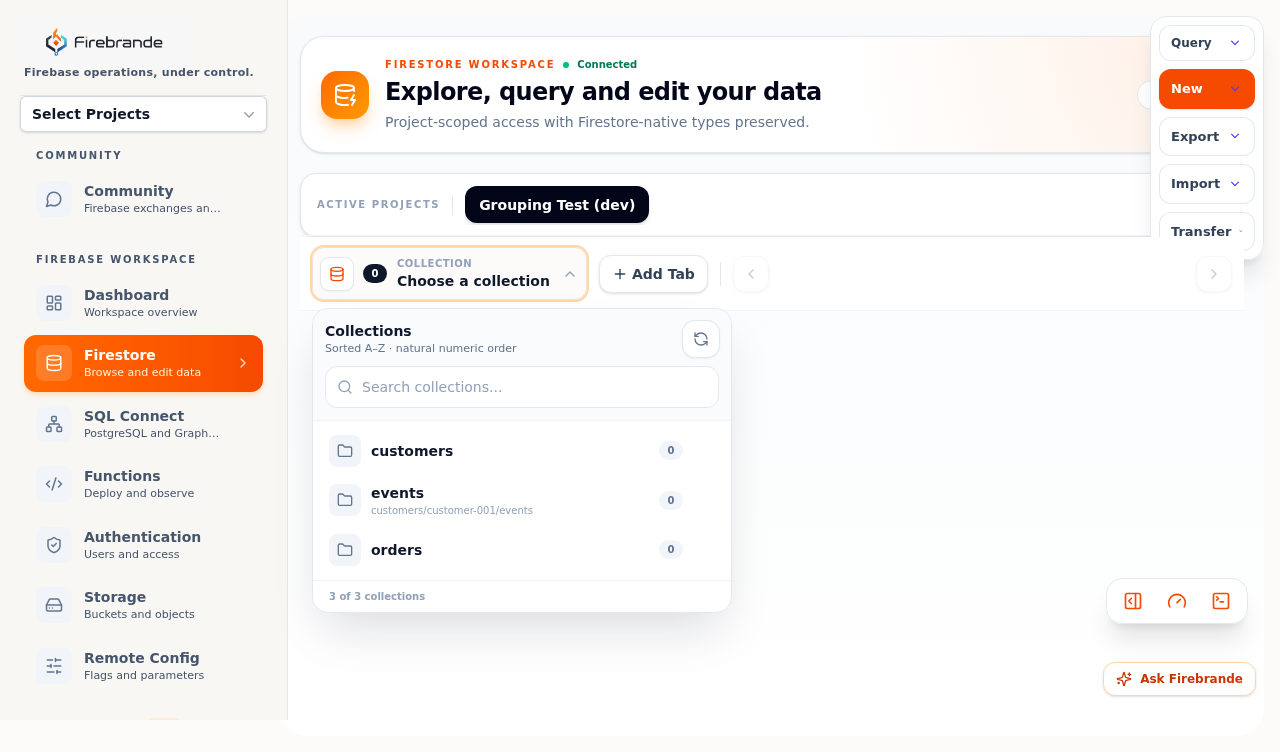
The Active projects bar pins which connected project the workspace is reading and
writing against — every tab underneath stays scoped to it. Open a tab and use the collection
picker to choose a path (including nested subcollections like customers/customer-001/events),
then reach for Query, New, Export, Import, or Transfer from the workspace toolbar. Add Tab keeps
several collections open side by side so you can compare data without losing your place.
Explore
Open collections, documents, subcollections, statistics, indexes, and saved queries.
Query
Filter and order results, use collection-group queries, count matches, and inspect explain metrics.
Change
Edit documents, queue filtered bulk work, import or export data, and monitor durable jobs.
Transfer
Copy selected collections and optional subcollections to one or more destination projects with checkpoints.
Review source, destination, collection paths, document limits, subcollection inclusion, and overwrite behavior before starting. Validate counts and sample documents in every destination.
Generate code and run scripts
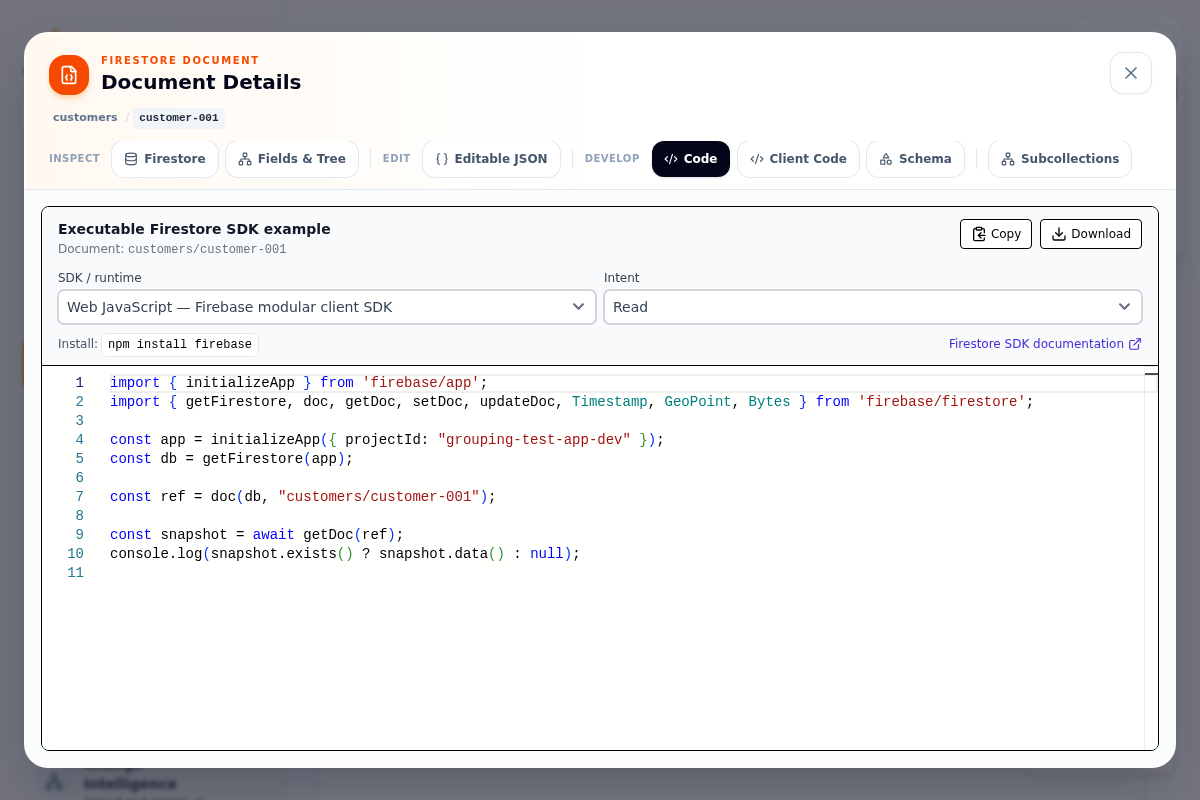
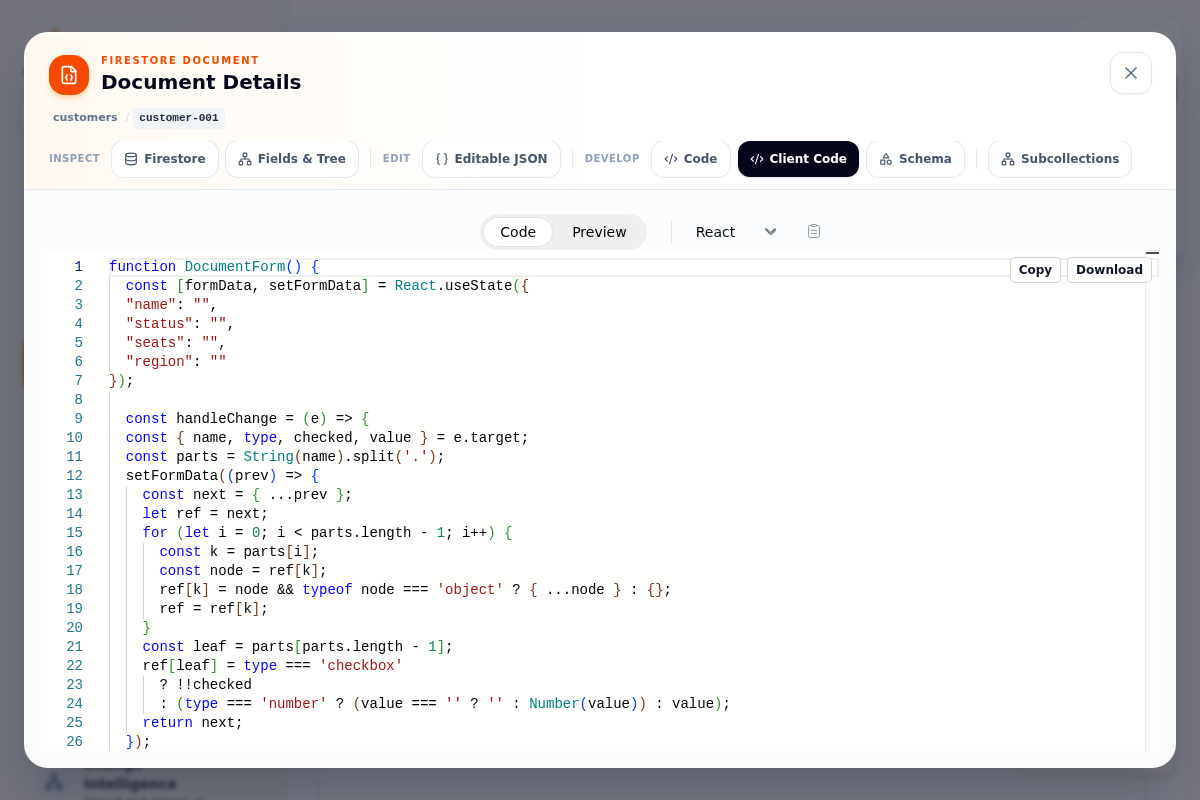
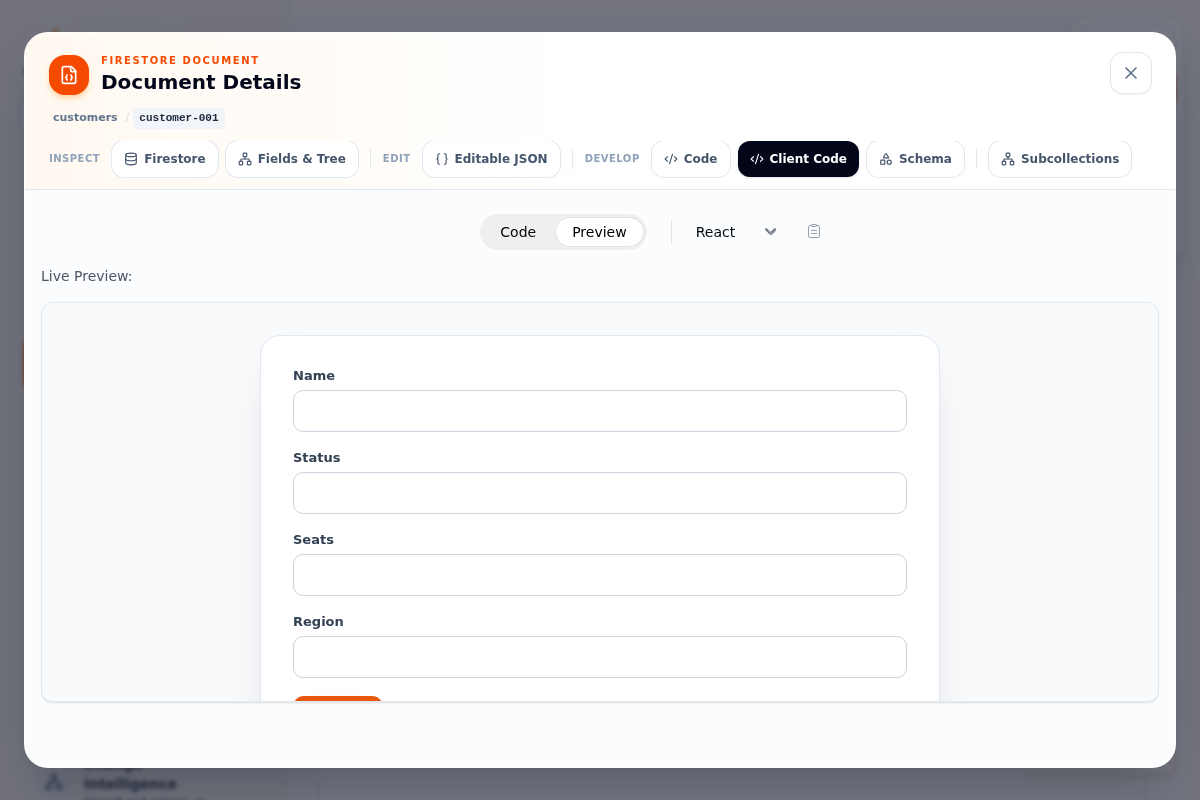
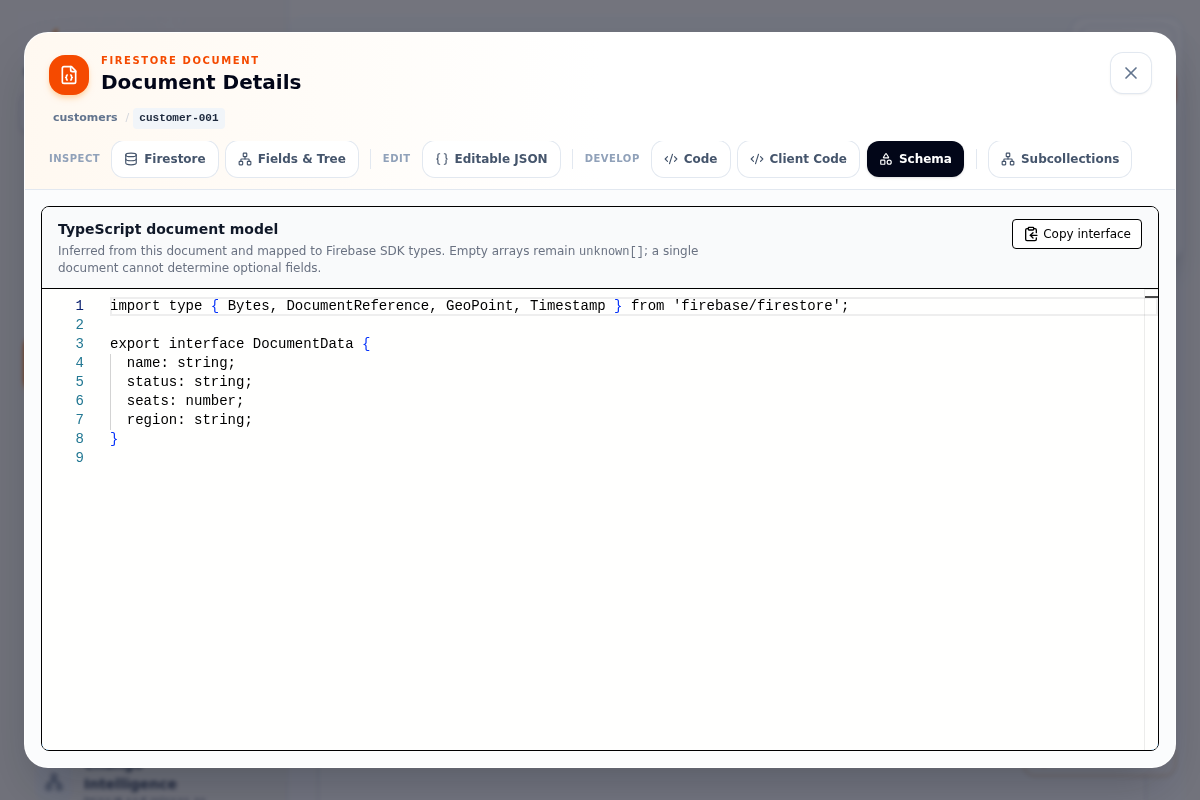
Every document has a code panel: open any row and its detail view adds four Develop tabs — Code, Client Code, Schema, and Subcollections — next to the read-only Firestore and Fields & Tree views and the Editable JSON tab. Nothing here writes to the document; every tab reads the document you already opened and generates code from it.
Code
A runnable server/client SDK example for this exact document: pick Web JavaScript, Admin Node.js, or Python Server, then Read, Create / replace, or Update fields. Copy or download it as-is, install command included.
Client Code
A ready-made UI form for the document's fields, generated in Vanilla JS, React, or Vue. Switch the language from one dropdown; toggle Code and Preview to see the same form actually rendered in the browser.
Schema
The document's inferred TypeScript document model — a copyable interface mapped to real Firebase SDK types (string, number, Timestamp, GeoPoint, Bytes, DocumentReference).
Scriptlets
For anything beyond a single document, the Scriptlets drawer is a small script runtime scoped to
the active project — open it from the terminal icon in the bottom-right corner of any Firestore
tab. Write JavaScript or TypeScript against a provided ctx (db, projectId, collection), then Run current to execute a draft immediately or Save draft / Save as new… to keep it. Library lists every script saved with
team visibility so a working script becomes something the whole team can reuse, and History keeps every prior version alongside its run log — each run recorded with
a success, error, or pending status — so a script's behavior stays auditable, not just its code.
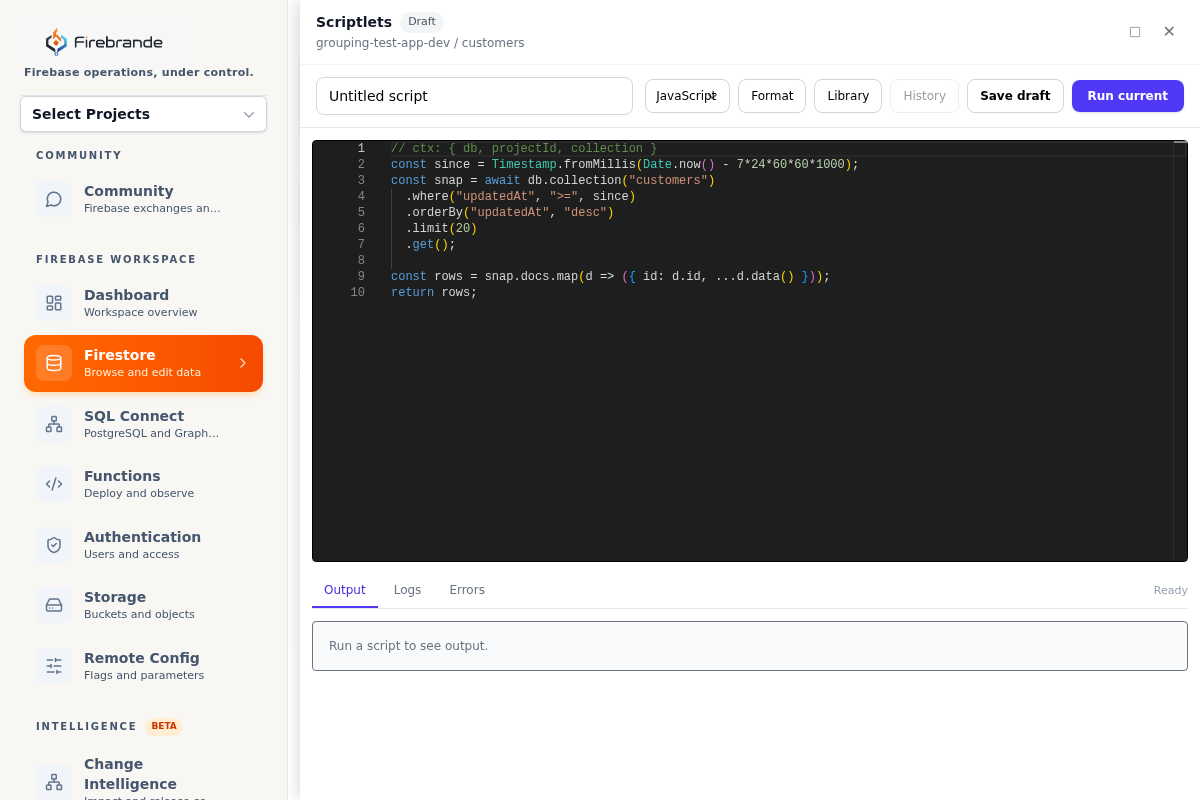
Start with a read-only script, review the generated or hand-written code line by line, and save an audited version before repeating it. A script runs with the same project access as the workspace itself — treat it like any other write path, not a sandbox.
Ask Firebrande is available from every screen in this workspace, including the code panel and the Scriptlets drawer — it's the same project-grounded Gemini assistant described under Intelligence. Ask it to explain a generated snippet, draft a query for the Scriptlets editor, or spot a mistake in a form field, then copy what it gives you into the editor yourself. It has read-only project context, can't edit or execute a script directly, and any operational action it proposes elsewhere still lands in the Action review queue for a human to approve — never applied automatically.
Authentication
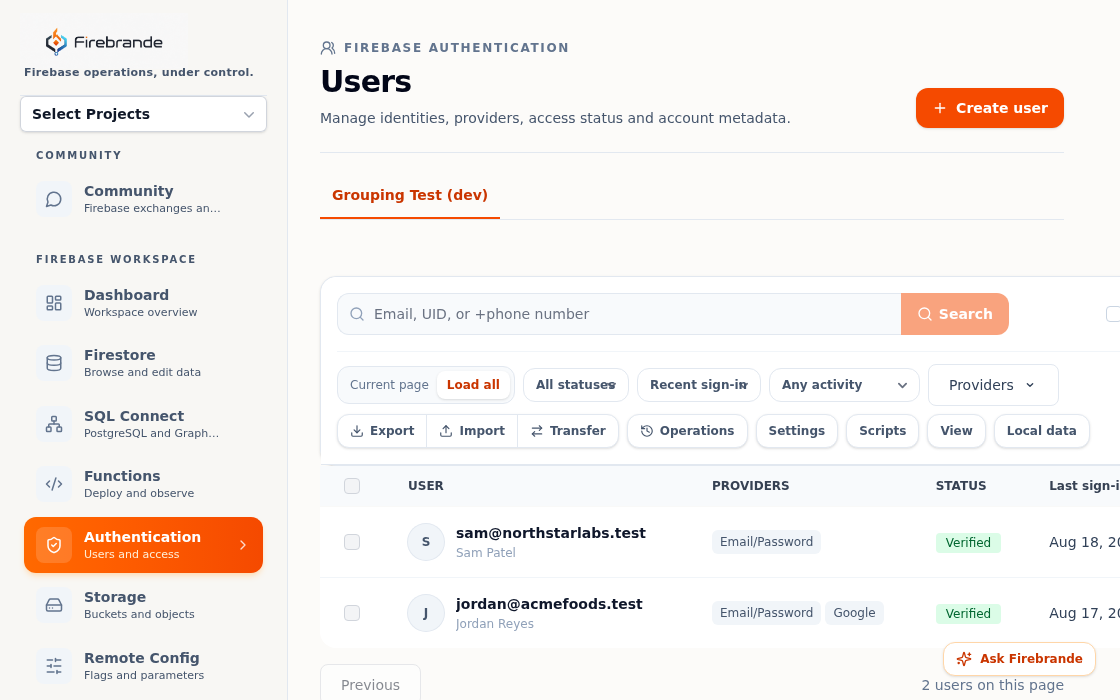
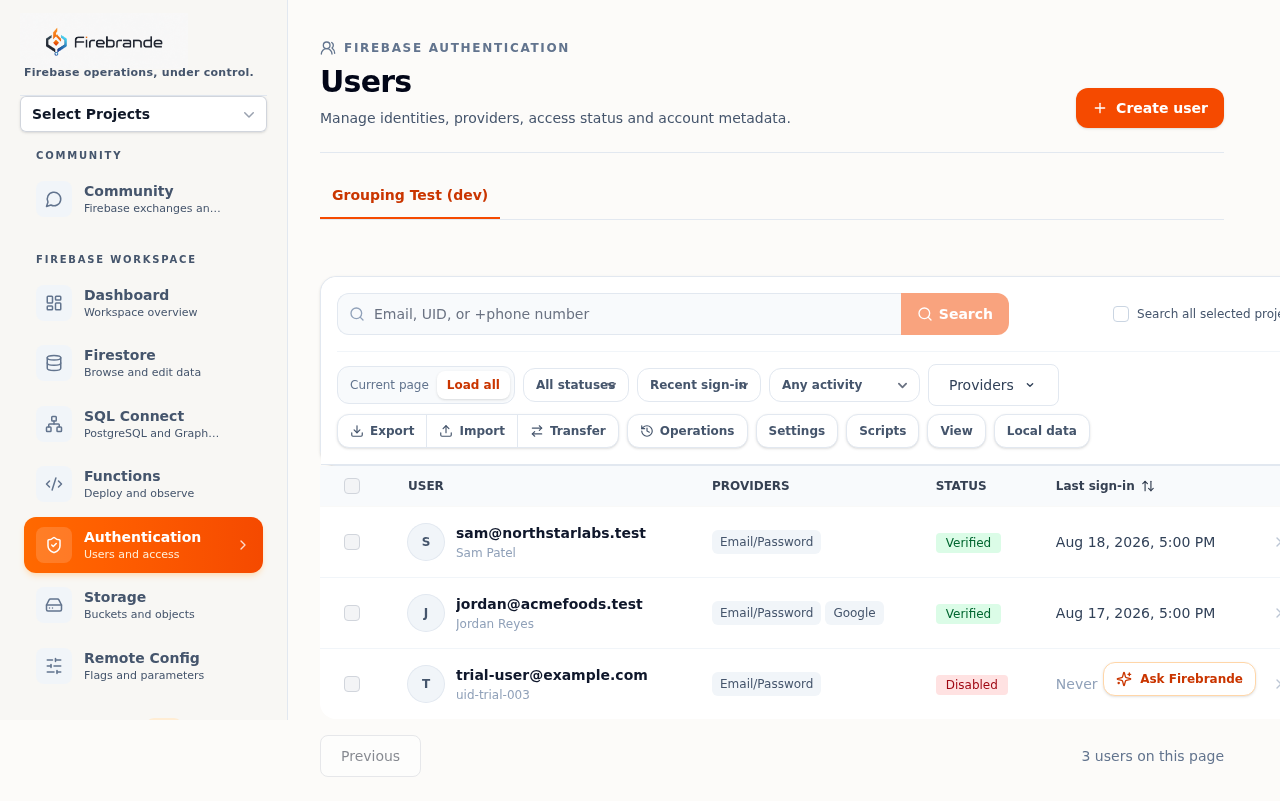
The Authentication workspace manages Firebase Authentication identities for the selected project. Search by email, phone number, or user UID, then review account status, providers, verification, activity, MFA factors, and custom claims before taking action.
The user table shows providers, verification status, and last sign-in for every account, with filters for status, recent activity, and linked providers. Current page loads results a page at a time; Load all pulls the full project for bulk filtering. Create user opens a form for a new identity, and selecting a row opens its detail drawer for edits. The toolbar also holds Export, Import, and Transfer for moving users between projects, Operations for job history, and Settings, Scripts, and saved View configurations for the table itself.
Manage an account
Create users and update email, phone, display name, photo URL, verification state, disabled state, password, and custom claims.
Secure an account
Send verification or password-reset email, revoke existing sessions, and inspect linked providers and MFA information.
Move user data
Preview CSV or JSON imports, export displayed users, and queue project-to-project transfers with the target reviewed carefully.
Verify the project and user UID before editing. Deleting users, disabling accounts, revoking sessions, changing claims, or unlinking providers can immediately change access to your application.
Safe Authentication workflow
- Confirm the active Firebase project and locate the user using a stable identifier.
- Review providers, verification, disabled status, recent sign-in, MFA factors, and claims.
- Choose the smallest action that solves the problem and record the reason.
- For bulk actions, filter first, review the selected count, and type the exact confirmation phrase.
- Refresh the user or review the operation job and audit entry after the change.
SQL Connect and data modeling
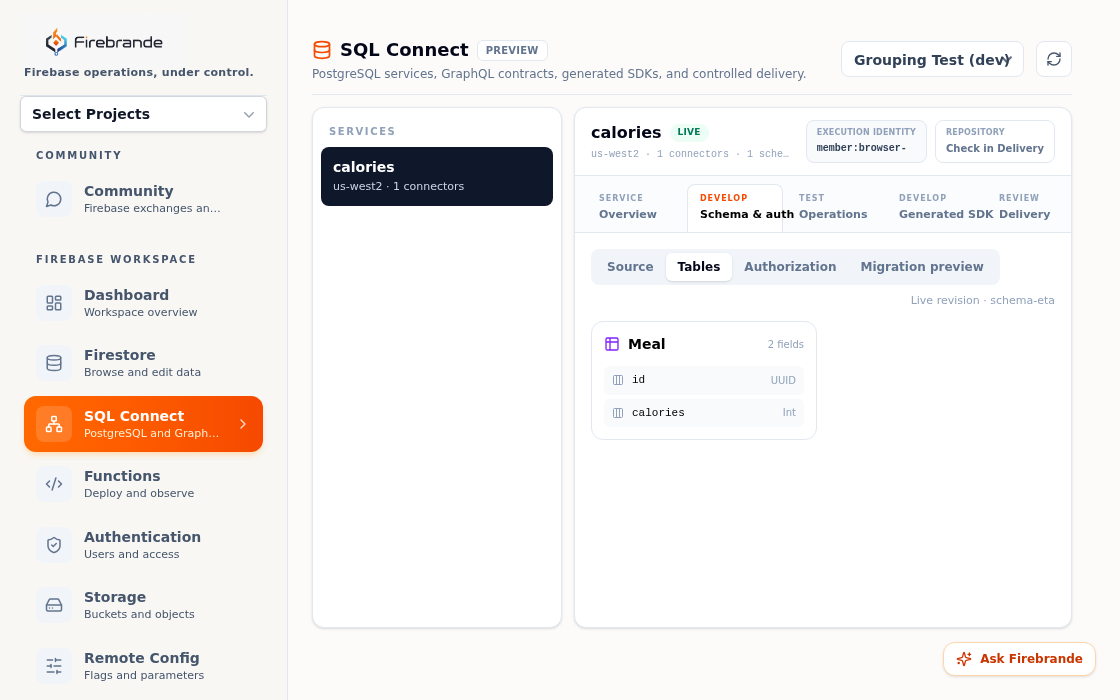
SQL Connect combines a PostgreSQL-backed data model with GraphQL operations and generated Firebase SDKs. Start with the service inventory, select a service, and use the workspace stages to move from modeling to controlled delivery.
Model
Review GraphQL source files, tables, fields, relationships, and connector configuration.
Authorize
Inspect authorization findings and confirm each query or mutation has the intended access behavior.
Test
Run query operations, save reusable contract tests, and exercise the authorization matrix.
Deliver
Compare source, validate migration risk, generate SDK artifacts, and deploy only after approval.
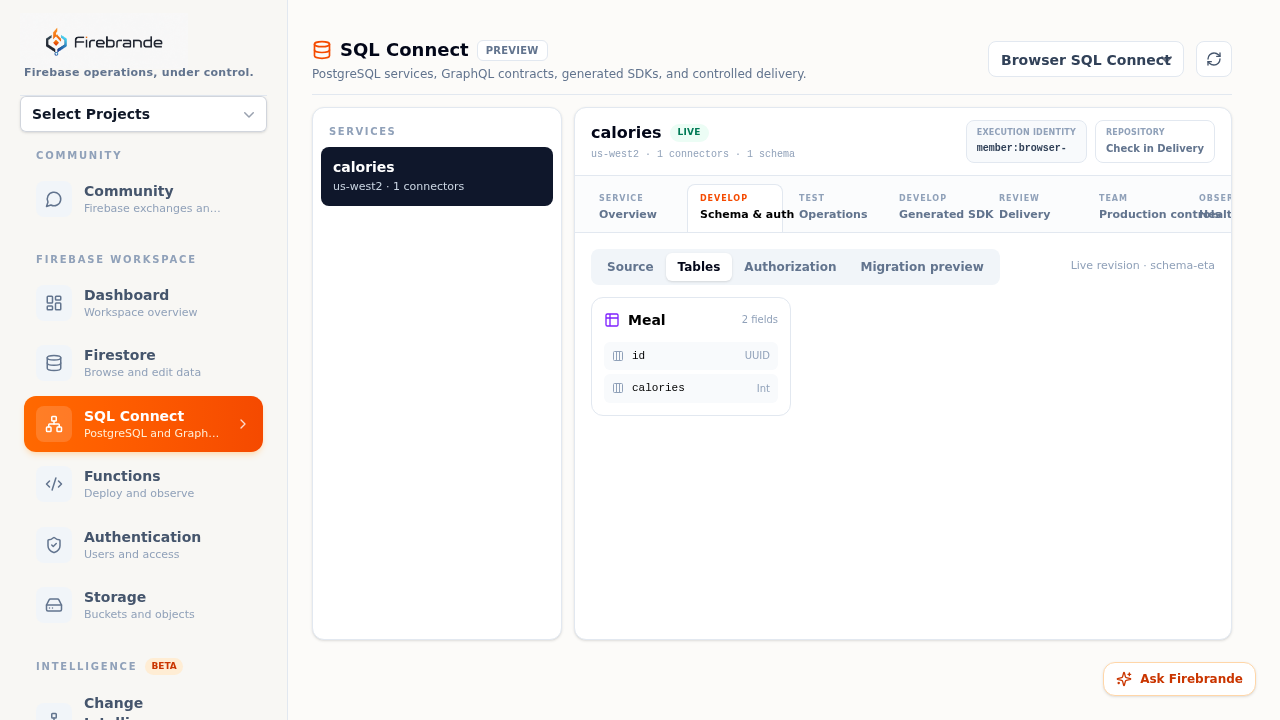
Editing the displayed GraphQL draft does not change the live database. Commit a reviewable change to the configured repository, inspect the migration preview, validate the complete workspace, and then promote it through the intended environment.
The Operations workspace distinguishes query reads from mutation writes. Queries can be used for verification and contract tests. Mutations require explicit confirmation and should be followed by a read that verifies the persisted result. Generated SDKs are repository artifacts; check their configured platform, package, output directory, and commit before shipping them.
Functions
The Functions workspace brings source, GitHub delivery, deployments, logs, secrets, packages, metrics, and incidents together for each selected Firebase project. Use it as a release loop: configure the source, make a reviewable change, deploy through GitHub Actions, then observe the result.
Configure
Connect GitHub, select the repository and branch, and confirm the Functions root, source directory, and entry point.
Develop
Work on a branch, inspect source and packages, keep manifests and lockfiles synchronized, and review the diff.
Deploy
Use repository-restricted OIDC and a protected GitHub environment to run the deployment workflow without service-account keys.
Observe
Inspect deployment properties, logs, invocations, errors, latency, alerts, and open incidents after release.
Package changes run on a work branch and commit package manifests after validation. Deploying Functions remains a separate, reviewed action against the selected Firebase project.
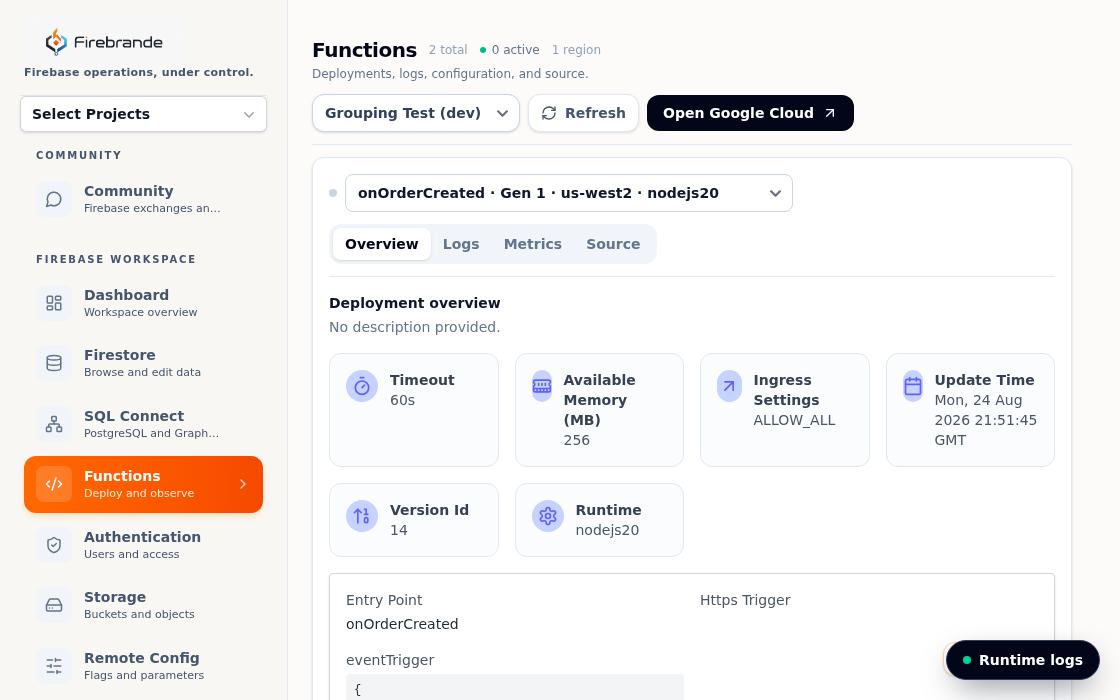
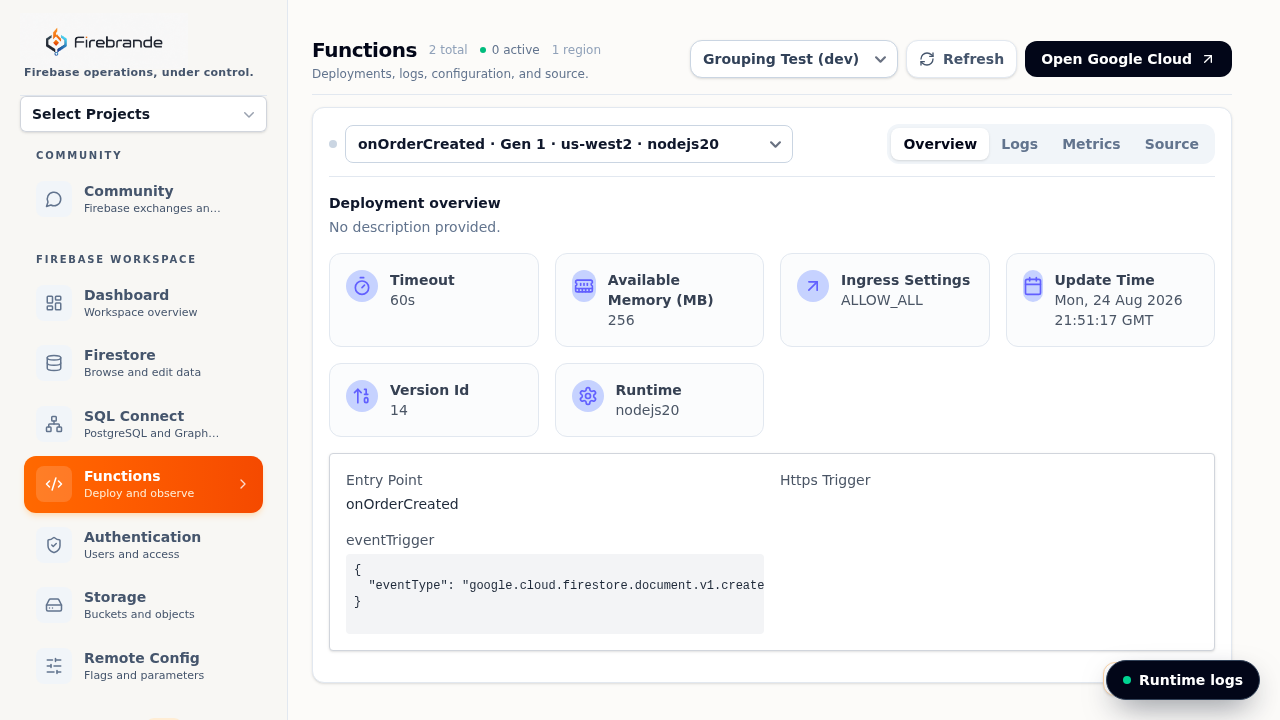
Selecting a deployed function opens its Overview, showing timeout, memory, ingress settings, update time, version ID, runtime, entry point, and its HTTPS or event trigger at a glance. Logs, Metrics, and Source sit next to it as tabs on the same function, and Open Google Cloud jumps to the matching Cloud Console page when you need controls Firebrande doesn't surface directly.
For GitHub Actions setup, use Workload Identity Federation (OIDC) restricted to the intended
repository. Configure the firebase-functions environment with the generated provider
and service-account variables, add required reviewers in GitHub when supported, and verify the
workflow run before treating a release as complete. Never add a service-account JSON key to the
repository.
Storage
The Storage workspace manages Firebase Storage buckets and objects without hiding the underlying Google Cloud controls. Browse paths, upload files, inspect versions, update metadata, manage access, configure retention and lifecycle, and monitor folder operations from the selected project.
Browse
Select a bucket, navigate folders, search objects, and inspect current, versioned, or soft-deleted data.
Operate
Upload, download, preview, rename, move, create folders, edit metadata, and manage object holds.
Protect
Review IAM, ACLs, rules, public access prevention, retention, versioning, lifecycle, and managed-folder policies.
Recover
Use generations, restore, rewrite, durable folder jobs, previews, and audit history to make changes traceable.
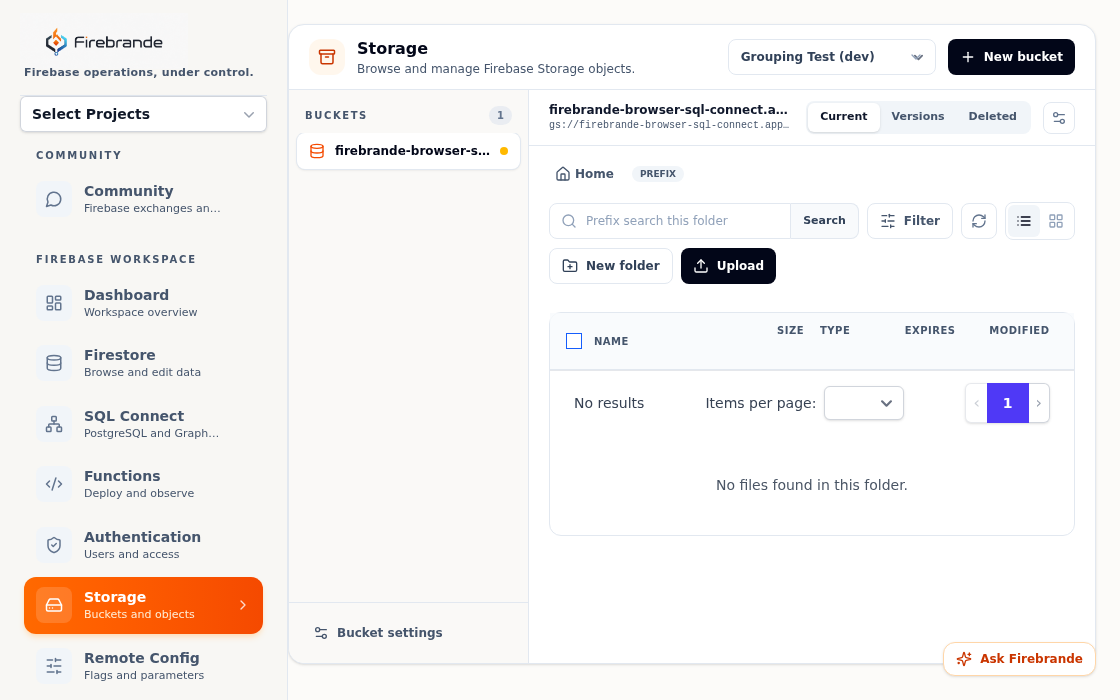
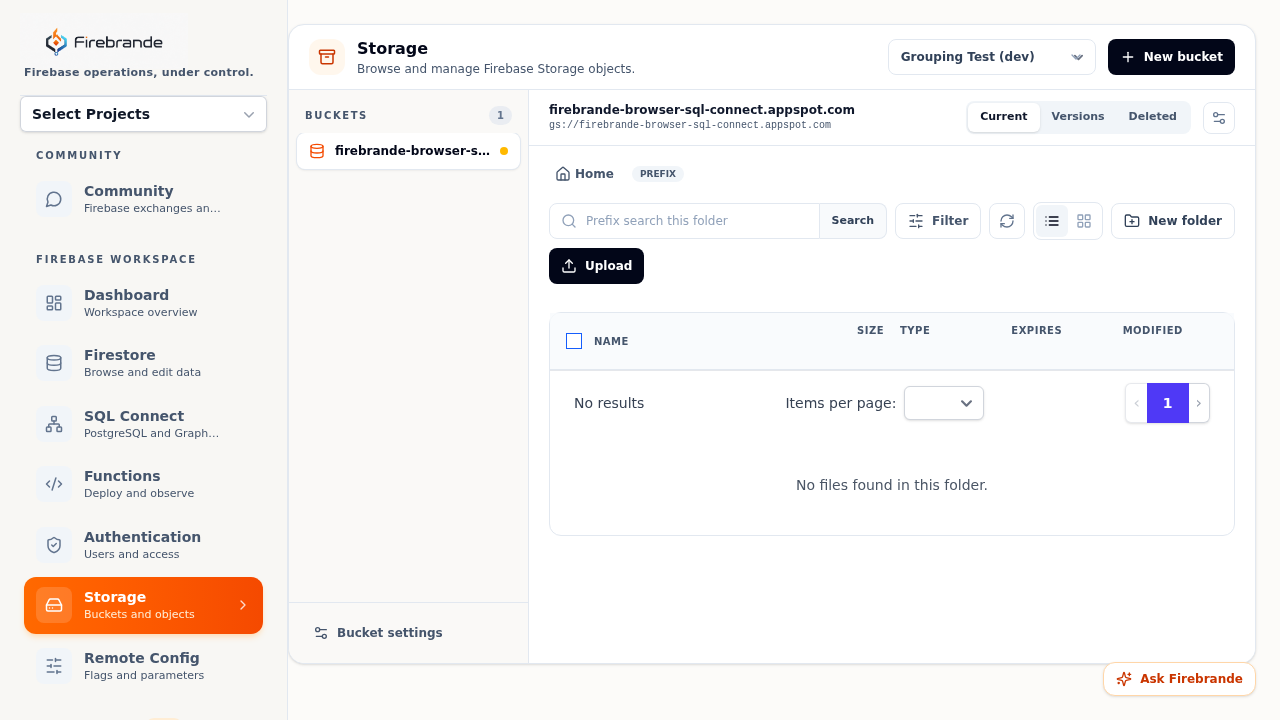
The bucket list on the left shows every bucket in the selected project; picking one opens its breadcrumb-based browser on the right, scoped to Current, Versions, or Deleted objects. A prefix search narrows the current folder, and Filter refines by type or metadata. Upload and New folder sit above the object table alongside a grid/list view toggle and a settings shortcut for the active bucket.
Renaming or moving an object changes its path. Verify references, download URLs, rules, and application code before applying a folder or object operation.
For sensitive buckets, review public access prevention and IAM before creating access links. Use resumable uploads for large files, validate content type and metadata, and treat exported objects and signed or tokenized links as sensitive credentials.
Intelligence
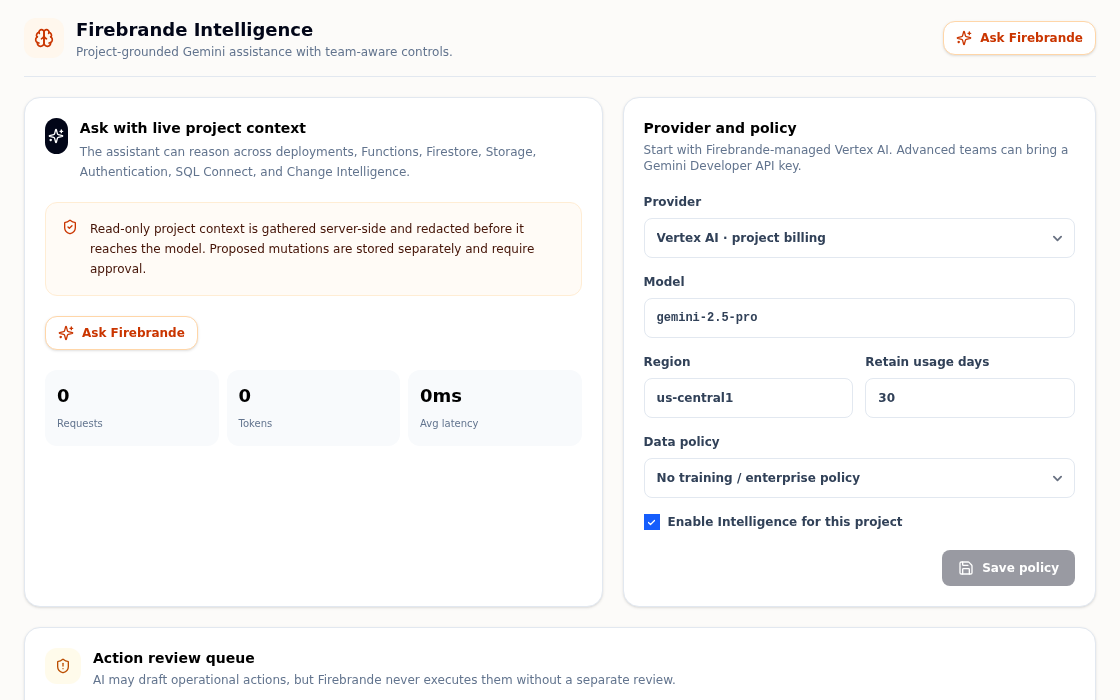
Firebrande Intelligence has two complementary surfaces. Change Intelligence compares live and Git architecture snapshots for release impact, while Gemini Intelligence answers questions using redacted, project-grounded context.
Change Intelligence
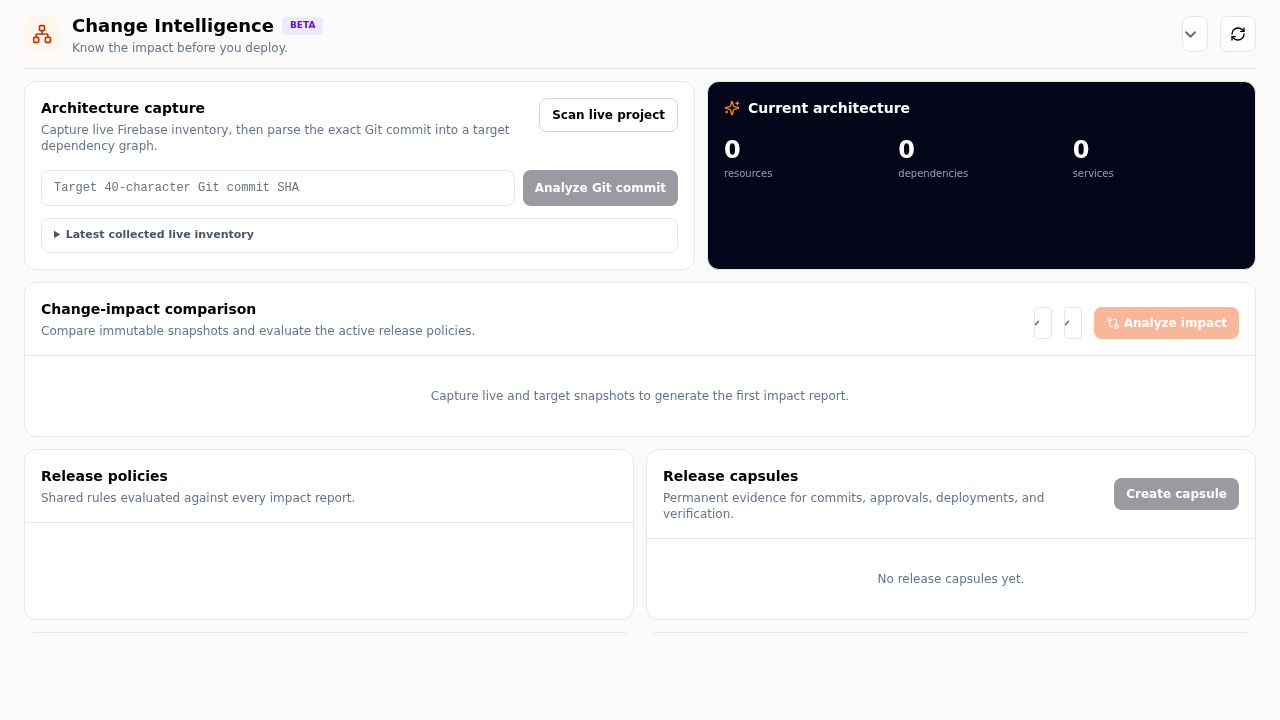
Capture live inventory, analyze a full Git commit, compare immutable snapshots, evaluate release policies, and create a durable release capsule.
Gemini Intelligence
Ask about deployments, logs, Firestore, Storage, Authentication, SQL Connect, and release risk with citations to the grounded context.
Action review
AI can draft an operational proposal, but proposed mutations are stored separately and require explicit human approval.
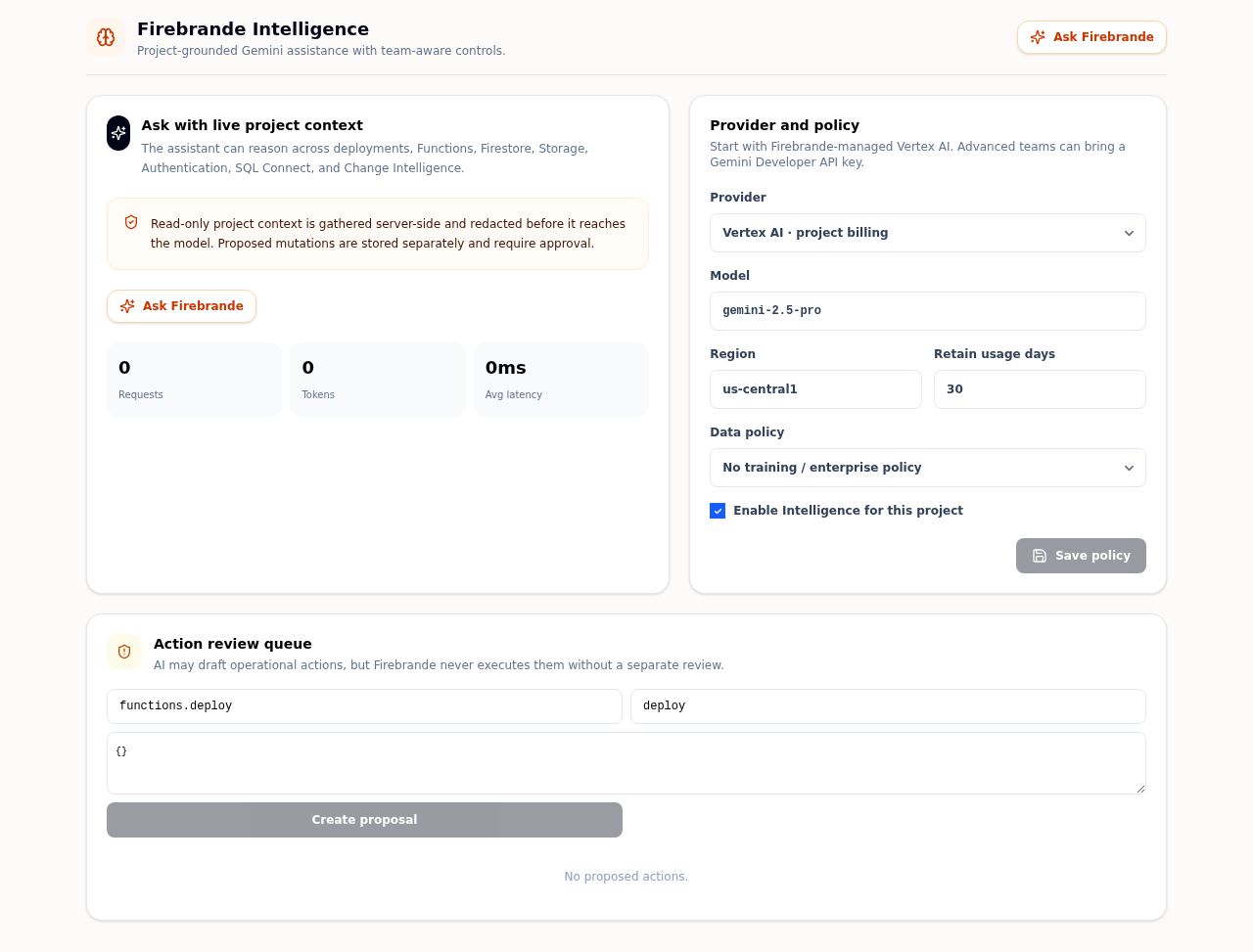
Gemini Intelligence pairs an Ask Firebrande chat panel — with request, token, and latency counters — against a Provider and policy panel where owners and admins pick the provider (Firebrande-managed Vertex AI or a bring-your-own Gemini API key), model, region, data policy, and usage retention, and can disable Intelligence for the project entirely. The Action review queue below it is where any AI-drafted operation (like a Functions deploy) waits as a named resource, action, and payload until a person approves it — nothing executes from a proposal automatically.
Review the project, evidence, policy result, and proposed arguments yourself. Never paste secrets into prompts, and do not treat an AI answer or risk score as proof that a release is safe.
Teams and projects
Teams are the security boundary for collaborators and connected Firebase projects. Team managers control membership, project connections, environment safety, and explicit GitHub repository links. Workspace access then follows the member’s role and the selected project’s policy.
Owner
Full team and project administration, including ownership changes and project moves.
Admin
Manage members, invitations, projects, safety policies, and linked repositories.
Member or viewer
Use project workspaces according to capability: members can make many routine changes; viewers are read-only.
Disconnecting a project removes Firebrande’s connection, tokens, linked repository, saved workspace state, and task history for that team. It does not delete the Firebase project or its data.
Project safety settings distinguish development, staging, and production and can mark a project read-only. Confirm the team, project ID, environment, and role before any production-sensitive operation.
Owners and admins invite teammates by email with a starting role directly from the Teams page (see the screenshot under Connect a project), and change or remove a member's role at any time. The same page's GitHub repository access panel is where repositories get explicitly linked to a project — Functions and SQL Connect delivery only reach repositories linked here, never a Google account's full repository list.
Billing and entitlements
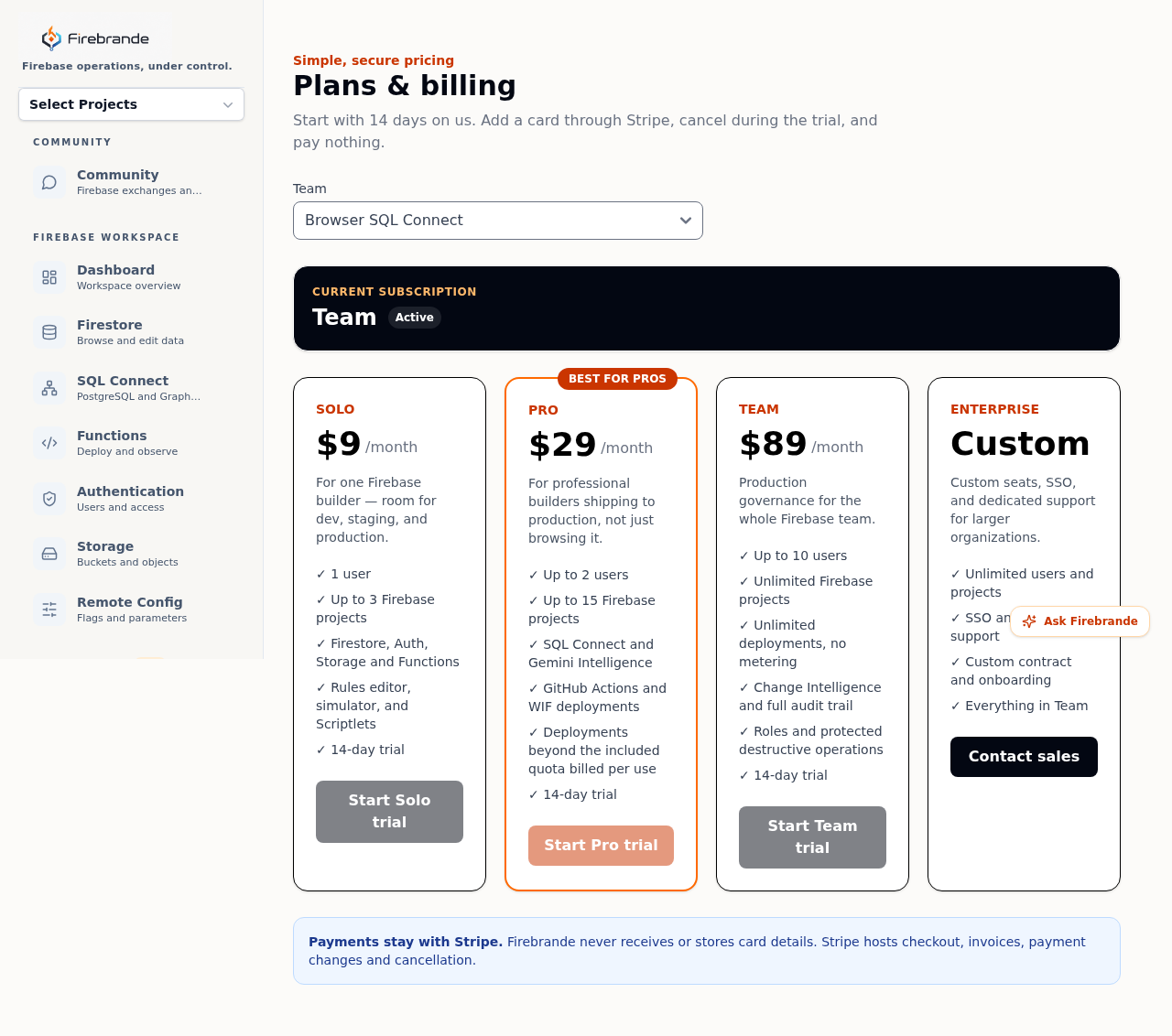
Billing belongs to the team. Stripe hosts checkout, payment methods, invoices, and cancellation; Firebrande synchronizes subscription state and uses it to enforce paid access, seat capacity, and project capacity.
Solo
$19/month, one user, and up to three Firebase projects — enough for a dev, staging, and production project per Firebase's own recommended setup. Firestore, Authentication, Storage, Functions, Rules, and Scriptlets. Includes the 14-day trial when the team has not used it.
Pro
$39/month, up to two users, and up to fifteen Firebase projects. Adds SQL Connect, Gemini Intelligence, and GitHub Actions + WIF deployment workflows for Functions and SQL Connect. Deployments beyond the plan's included quota are billed per use.
Team
$119/month and up to ten users, with unlimited Firebase projects and unlimited deployments. Adds Change Intelligence and the full audit trail on top of everything in Pro.
Unlimited seats and projects and dedicated support, priced and contracted individually. Enterprise isn't self-serve — it's activated after a direct conversation, not through Plans & billing's checkout. Reach out from the pricing page to start that conversation.
trialing or active Past-due, incomplete, canceled, and other inactive subscription states do not satisfy the paid workspace gate. Owners and admins manage billing through Plans & billing; members and viewers cannot open billing actions.
Calling SQL Connect, Gemini Intelligence, Functions/SQL Connect deployment, or Change Intelligence from a plan that doesn't include it returns 402 with the plan you'd need — the same central authorization path every other capability check already goes through, not a separate client-side check.
The Plans & billing page shows the team's Current subscription banner (plan and status) above the three plan cards, each listing its own limits and a trial-start button. Switch which team you're viewing with the team selector at the top — billing is always scoped to one team at a time, never to an individual project.
See docs/BILLING_ENTITLEMENTS.md for checkout, webhook reconciliation, plan limits, environment configuration, and billing incident runbooks.
Audit log
Audit log in the sidebar lists every change made through Firebrande, newest first: Firestore edits, imports and deletes; Authentication, Storage, Functions, Hosting, SQL Connect, Remote Config and Pipes changes; rules releases; and team changes such as invitations, role changes and project settings. Filter it by project, service and time, or search it. Every role can read it, for the projects they can see.
Firestore document changes keep an encrypted copy of the document before and after, so you can see exactly what changed and restore the earlier version. If the document has changed again since, Firebrande shows you the difference and asks before overwriting. A restore is recorded too, so it can be undone the same way. Copies are kept for 30 days; each project can turn Document history off under Teams, and then only the fact of the change is kept. A document's History button opens its changes.
The log covers changes made through Firebrande. Changes made directly in Firebase, by your apps or by other tools aren't in it; Google Cloud's own audit logs cover those.
Firebase Security Rules
Firebase Rules are the client-data authorization boundary for Firestore and Storage. They are separate from Firebrande team roles, Google Cloud IAM, and server credentials, so each layer must be reviewed independently.
Deny by default
Require authentication, verify ownership or membership, validate fields and file properties, and keep destructive operations narrow.
Test denials
Simulate anonymous, cross-team, malformed, oversized, and immutable-field changes—not only successful requests.
Release carefully
Compile first, test the exact paths, deploy to the intended project or bucket, and retain a rollback ruleset.
A Firestore query is denied if it could return even one unauthorized document. Storage Rules and Firestore Rules are separate, and trusted Admin SDK calls require their own IAM and server authorization review.
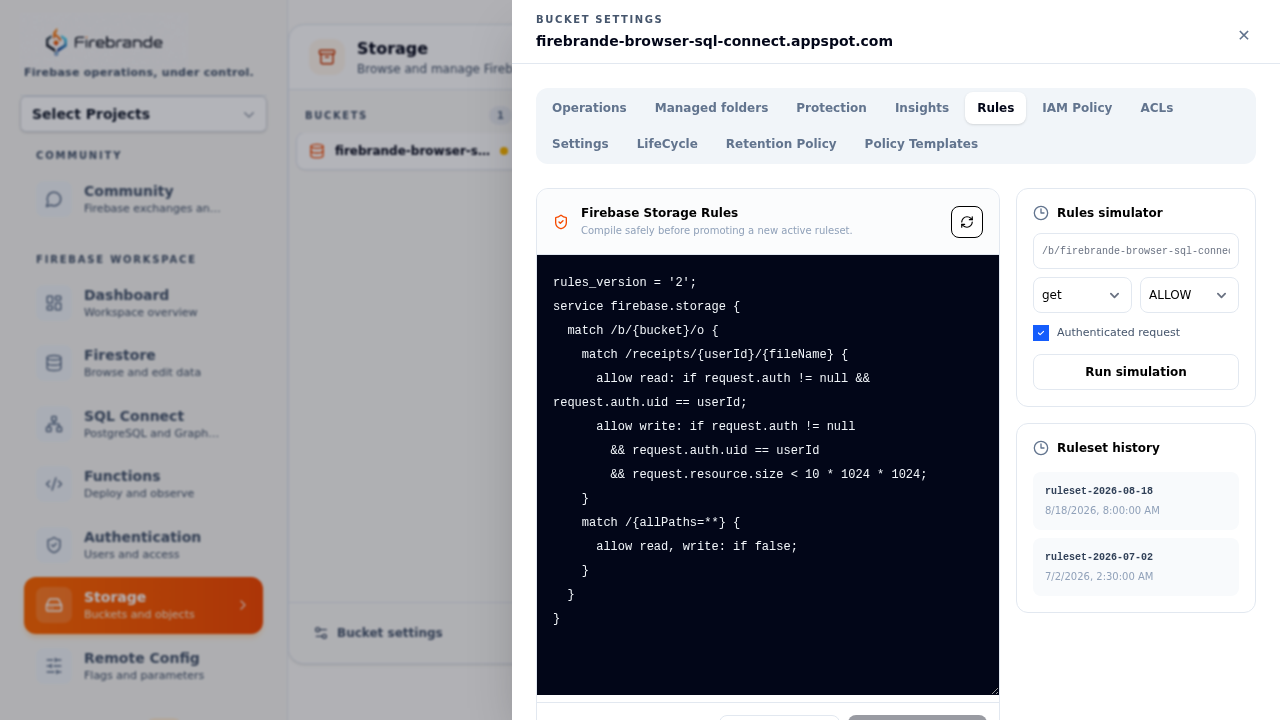
Firestore rules are under Firestore rules in the sidebar (or the lock button on the Firestore page), one set per database. Storage rules are on each bucket's Settings → Rules tab. Both use the same editor:
- Check compiles the draft without releasing anything and marks each problem on its line.
- Simulator runs one request against the draft: method, path, signed in or out with token claims, the data being written, the document as it is now, and any documents the rules read with
get()orexists(). It says whether the request is allowed and which line decided. - Release… checks again, shows the draft beside the live rules, and asks before releasing. Rules that don't compile are never released. Only owners and admins can release, and not in a read-only project.
- Versions lists earlier rules for the database or bucket: compare one with your draft, edit a copy, or make it live again.
Every release and rollback is recorded in the audit log.
See docs/FIREBASE_RULES.md for Firestore and Storage examples, simulator behavior, CI testing, deployment, and troubleshooting.
Security model
Firebrande combines account identity, team membership, project capability checks, project safety policies, and downstream Firebase or Google permissions. Every sensitive operation should be understood as a chain: user → team → project or resource → capability → external provider.
Identity
Sign in with the supported account, keep Google authorization current, and reconnect when project tokens expire.
Authorization
Roles and capabilities are checked server-side against the project’s team before protected API work begins.
Protection
Read-only projects, confirmation phrases, repository allowlists, redaction, encrypted tokens, and audit records reduce operational risk.
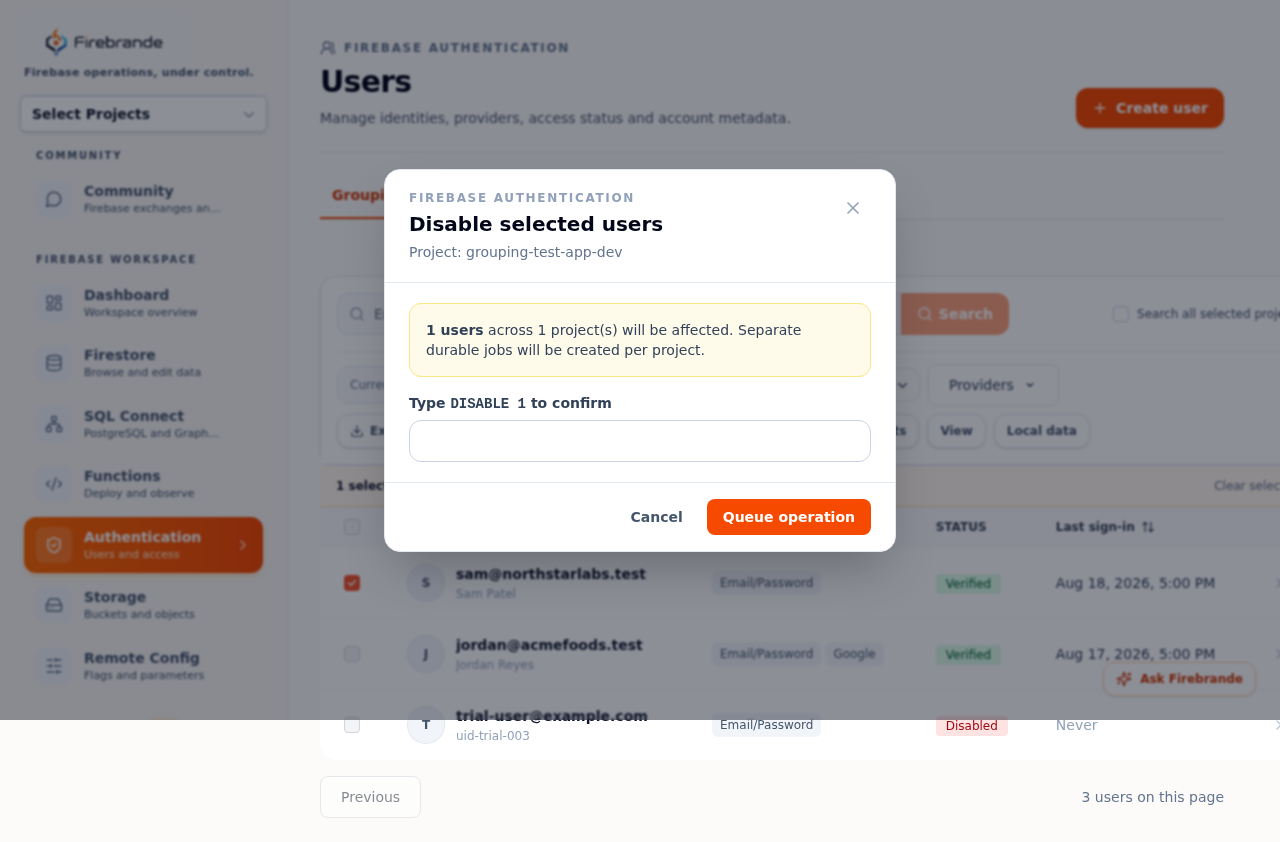
A confirmation phrase is a literal, typed guard on top of the button click: bulk-disabling users,
for example, asks you to type DISABLE <count> — the exact operation and affected
count — before Queue operation unlocks. The dialog also states how many users and
projects will be touched and that separate durable jobs are created per project, so a multi-project
bulk action can't silently apply everywhere at once.
Firebrande’s controls do not replace Firebase Security Rules, Google Cloud IAM, GitHub branch protection, or provider billing and quota controls. Review all layers before production access.
- Never share OAuth tokens, invitation links, API keys, service-account keys, or download tokens.
- Use the least-privileged team role and external provider permission that supports the task.
- Prefer previews, dry runs, staging projects, protected branches, and explicit approvals.
- Record the project, resource, actor, operation, timestamp, and job or commit ID for sensitive changes.
Troubleshooting
When something fails, confirm the signed-in account, selected team, Firebase project ID,
environment, read-only state, and exact operation before retrying. Firebrande uses clear failure
boundaries: 401 means authentication, 403 means access or capability, 423 means read-only, and 409 usually means a resource conflict.
Provider access
Reconnect Google or GitHub when credentials expire, then verify the project or repository is visible to the intended account.
Jobs
Check Durable Activity, checkpoints, retries, and item errors before starting a second transfer, export, or bulk operation.
Escalation
Collect the team, project, role, timestamp, operation, error, job ID, commit, or deployment revision—without secrets.
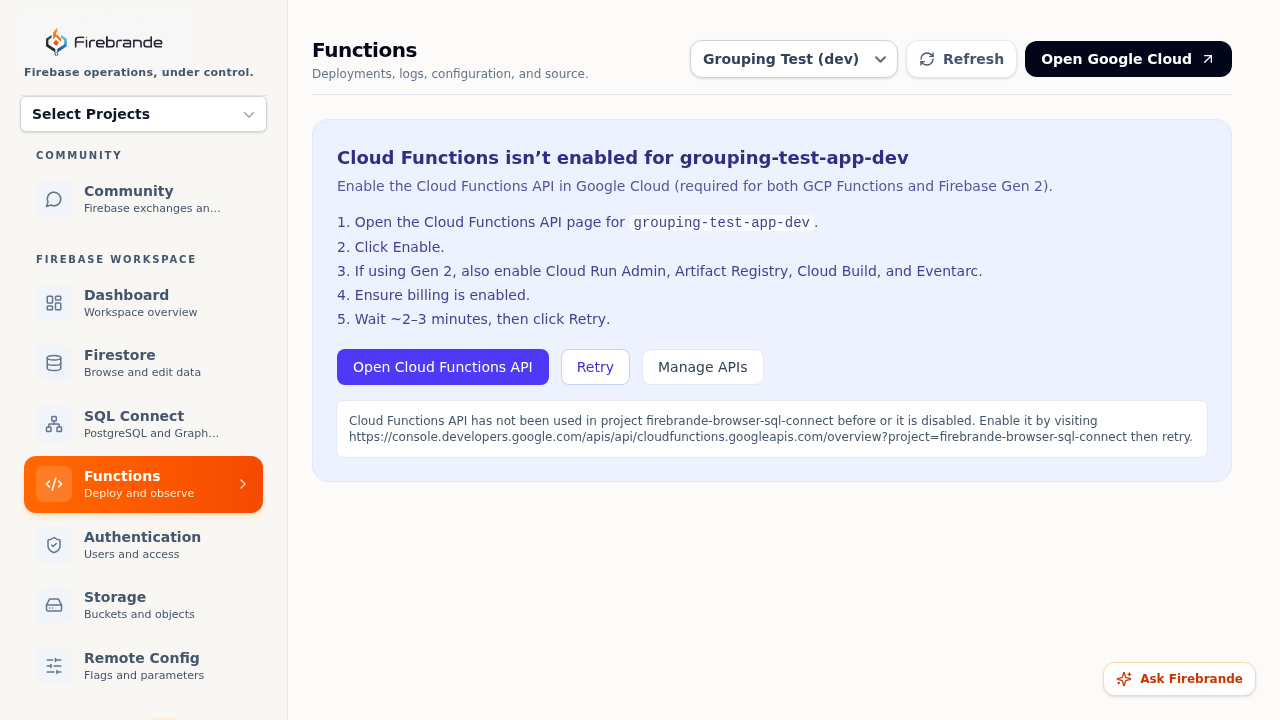
Some failures come with a built-in fix, not just an error string. A disabled Google Cloud API, for example, surfaces as a step-by-step recovery card with a direct link to enable it and a Retry button — the underlying error text stays visible underneath for anyone who needs to escalate it.
The repository guide docs/TROUBLESHOOTING.md contains symptom-by-symptom runbooks for every workspace.
Safety and access
Firebrande applies team-aware access to connected projects. Some workspaces and operations are read-only, and destructive or production-sensitive actions ask for an explicit confirmation. Treat the selected project as part of the change record: verify its name and ID before acting.
- Use least-privilege Google and Firebase access for each team member.
- Prefer development projects for imports, migrations, policy experiments, and deployment rehearsals.
- Review a preview, diff, or plan before applying a bulk operation.
- Keep credentials, tokens, and secrets out of documents, scripts, commits, and screenshots.
The read-only switch itself lives per project in the Teams page's Environment safety panel (see the screenshot under Connect a project) — checking it blocks writes across every workspace for that project until it's cleared again, regardless of a member's role.
Before launch
- Confirm your Firebase project and team access.
- Review security rules and production safeguards.
- Run a representative workflow in a non-production project.
- Invite your team and agree on a change-review process.
Deploy safely
Configure environment variables, migrations, OAuth callbacks, Stripe webhooks, Postmark, cron, staging, smoke tests, and rollback.
docs/DEPLOYMENT_ENVIRONMENT.md
Use the API
Review route families, capabilities, identifiers, error codes, durable jobs, pagination, and retry behavior.
docs/API_REFERENCE.md
Control providers
Check Firebase/GCP prerequisites, IAM, quotas, budgets, cost drivers, and provider incident response.
docs/PROVIDER_PREREQUISITES_COSTS.md
Integrate GitHub
Link repositories explicitly, use protected branches and WIF, review generated workflows, and record deployment runs.
docs/GITHUB_INTEGRATION.md
Administer support
Manage roles, invitations, ownership, project moves, billing responsibility, support intake, and incident escalation.
docs/ADMINISTRATION_SUPPORT.md
Recover safely
Freeze unsafe work, restore from verified sources, validate data and access, resume jobs carefully, and rehearse recovery before an incident.
docs/DISASTER_RECOVERY.md
Release with evidence
Run offline, authorization, browser, Rules, live Firebase, provider, migration, and smoke tests with explicit approval and rollback criteria.
docs/TESTING_RELEASE_QUALITY.md
Protect data
Minimize provider content, protect credentials, enforce team boundaries, define retention, and handle exports or deletion deliberately.
docs/DATA_PRIVACY_RETENTION.md
Design accessibly
Support keyboard and screen-reader use, visible focus, clear errors, responsive layouts, reduced motion, and safe asynchronous workflows.
docs/ACCESSIBILITY_UX.md
Govern privacy
Maintain accurate data inventories, provider reviews, user-request workflows, transfer controls, and incident notification paths.
docs/PRIVACY_COMPLIANCE_GOVERNANCE.md
Core guides: docs/WORKSPACE_OPERATIONS.md covers operational workflows, docs/LIVE_FIREBASE_TESTING.md covers live Firebase verification, and docs/TROUBLESHOOTING.md contains symptom-by-symptom runbooks.